Admin central
Admin central is where instance administrators review Appsmith communications about upcoming release changes. It shows which of those changes apply to your instance, and whether any need action before you upgrade.
Most notices are informational. A pending upgrade checkpoint is the exception: confirming or skipping it there is what allows a later upgrade to proceed. See Upgrade checkpoints.
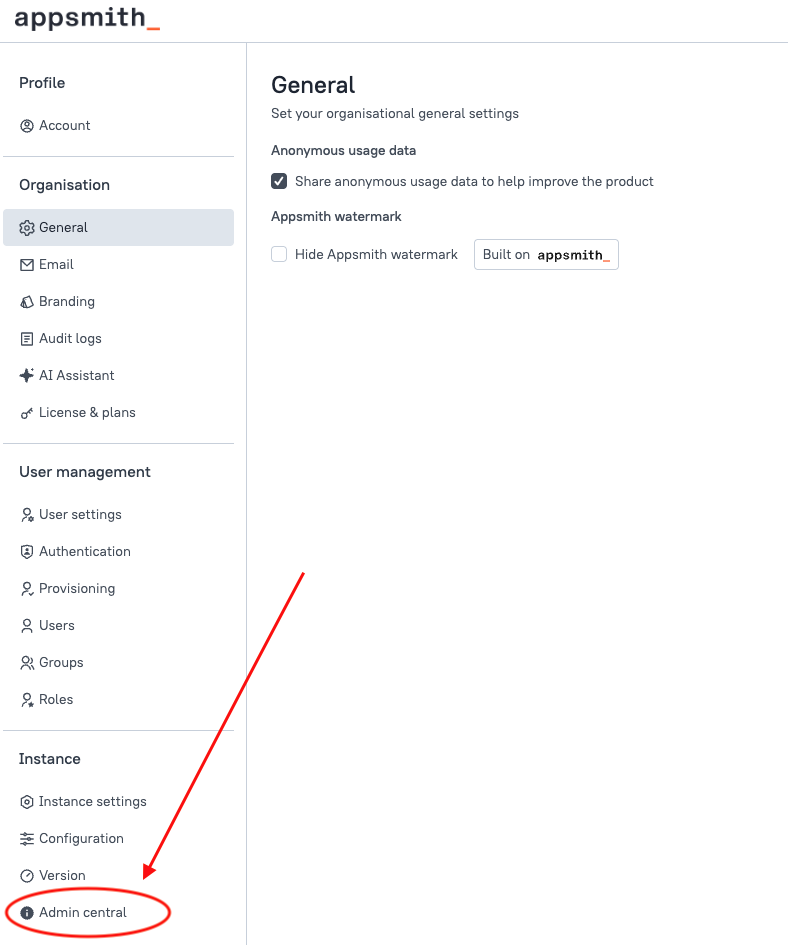
Only users with Instance Administrator privileges can open Admin central. The page appears under Instance on self-hosted instances. It is not shown on Appsmith Cloud or on deployments where multiple organizations are enabled.
Open Admin central
- Sign in as an instance administrator.
- Open Admin Settings.
- Under Instance, select Admin central.
What you see
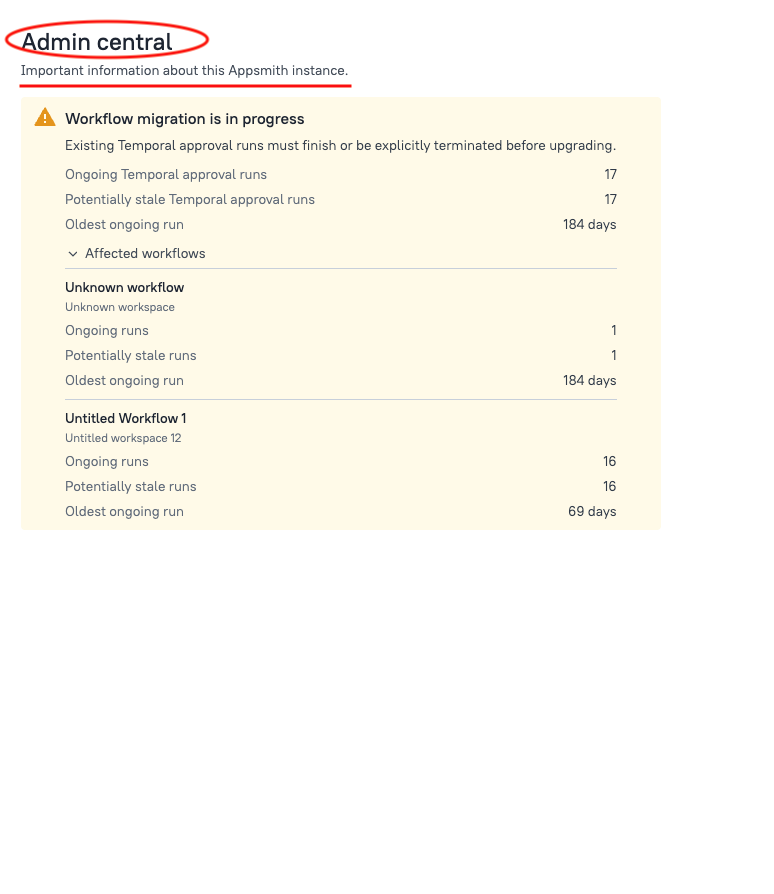
Appsmith adds a notice when a change in an upcoming or current release requires administrator attention. Each notice can include:
- A title and short description of the change
- A severity indicator so you can tell informational updates from items that need action
- Summary details, such as counts or status for the current instance
- An expandable list of affected items when more context is available
- A Learn more link to the documentation for that change
Review each notice and follow its documentation before you upgrade, if the notice says an upgrade depends on completing work on this instance. For a pending upgrade checkpoint, follow Upgrade checkpoints. For workflow notices, see Native workflow engine.
When no action is required
If there is nothing that needs attention, Admin central shows:
There is no action required for this instance.
This is the expected state when no release communications apply to the instance. Notices appear when a change needs attention and disappear when that work is complete.
If the page does not load
If Appsmith cannot load instance information, refresh the page and try again. You must stay signed in as an instance administrator.